Project schedule template
Organize tasks, deadlines, and milestones with a project scheduling template that helps your team plan work, assign owners, and meet deadlines.
Create your templateSign up to create your own template.
INTEGRATED FEATURES
Recommended apps




Summary
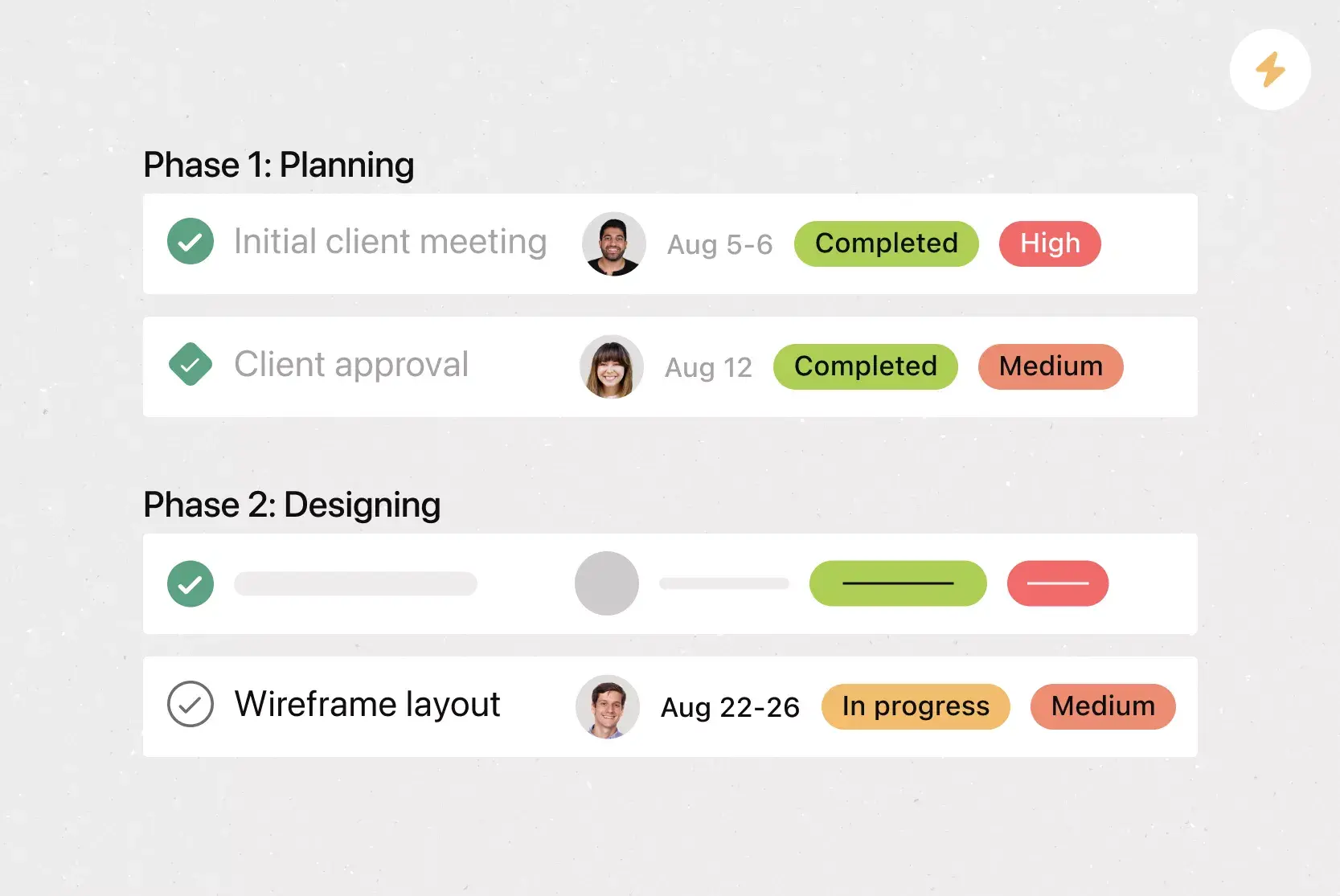
![[Product ui] Event project schedule in Asana (timeline view)](https://assets.asana.biz/transform/b71f30f8-7ae7-4b1d-a573-1f769683eae9/TG23-web-hero-004-event-project-schedule-static-2x-en?io=transform:fill,width:2560&format=webp)
Large, complex projects need structure to stay on track, and a project schedule template keeps all tasks, deadlines, and milestones in one place. Below, you'll learn what a project schedule is, the key elements every template needs, the types of schedules to choose from, and how to create your own custom template in Asana.
What is a project schedule?
A project schedule is a timeline that maps out every task, milestone, and deliverable in your project from start to finish. As a key component of project management, it organizes work into an actionable sequence based on your project roadmap and lifecycle, so your team can see exactly what needs to happen and when.
Why use a project schedule template?
In the planning stages, everything feels possible, and you're usually excited to dive in. But without a schedule, you can quickly lose sight of why you started and what you're hoping to achieve. Creating a project schedule template upfront gives you a reliable point of reference every step of the way.
There are several ways to manage your project schedule template, but using a project management tool will help you get the most from it. You'll be able to save your favorite schedule as a template and reuse it for every new project. Using a tool also allows you to:
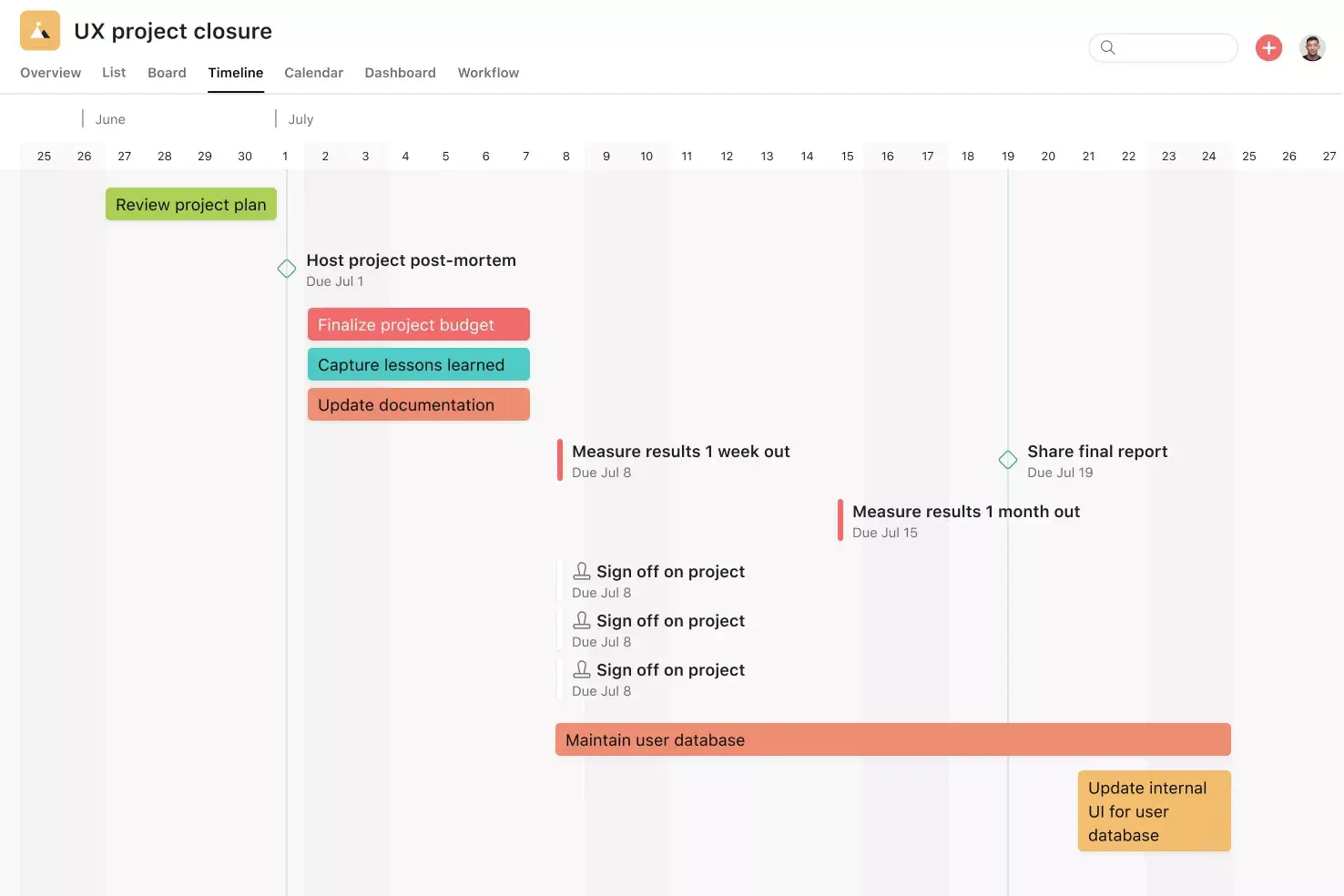
Design your schedule on a visual timeline so you can instantly see connections among to-dos, team members, and deadlines.
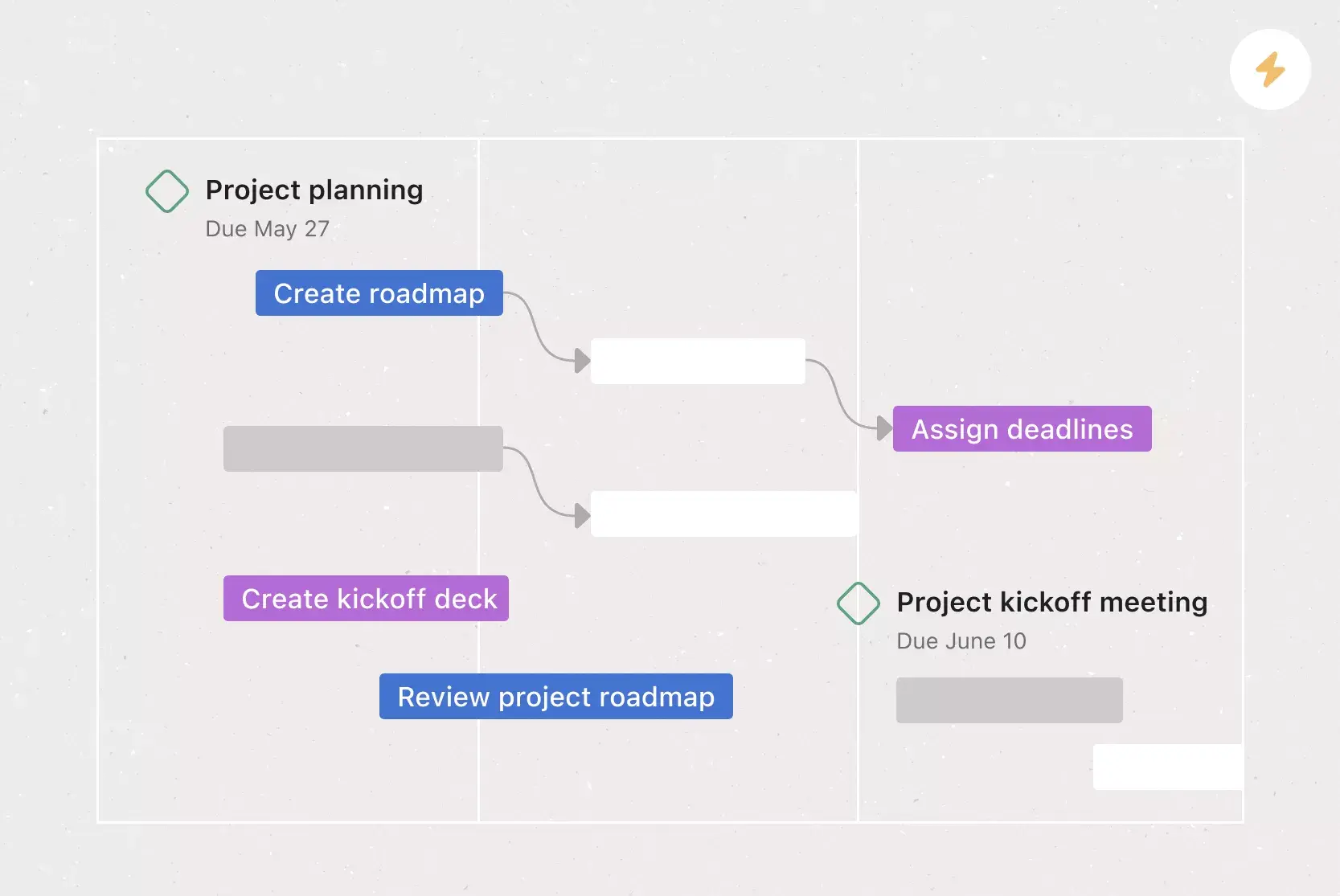
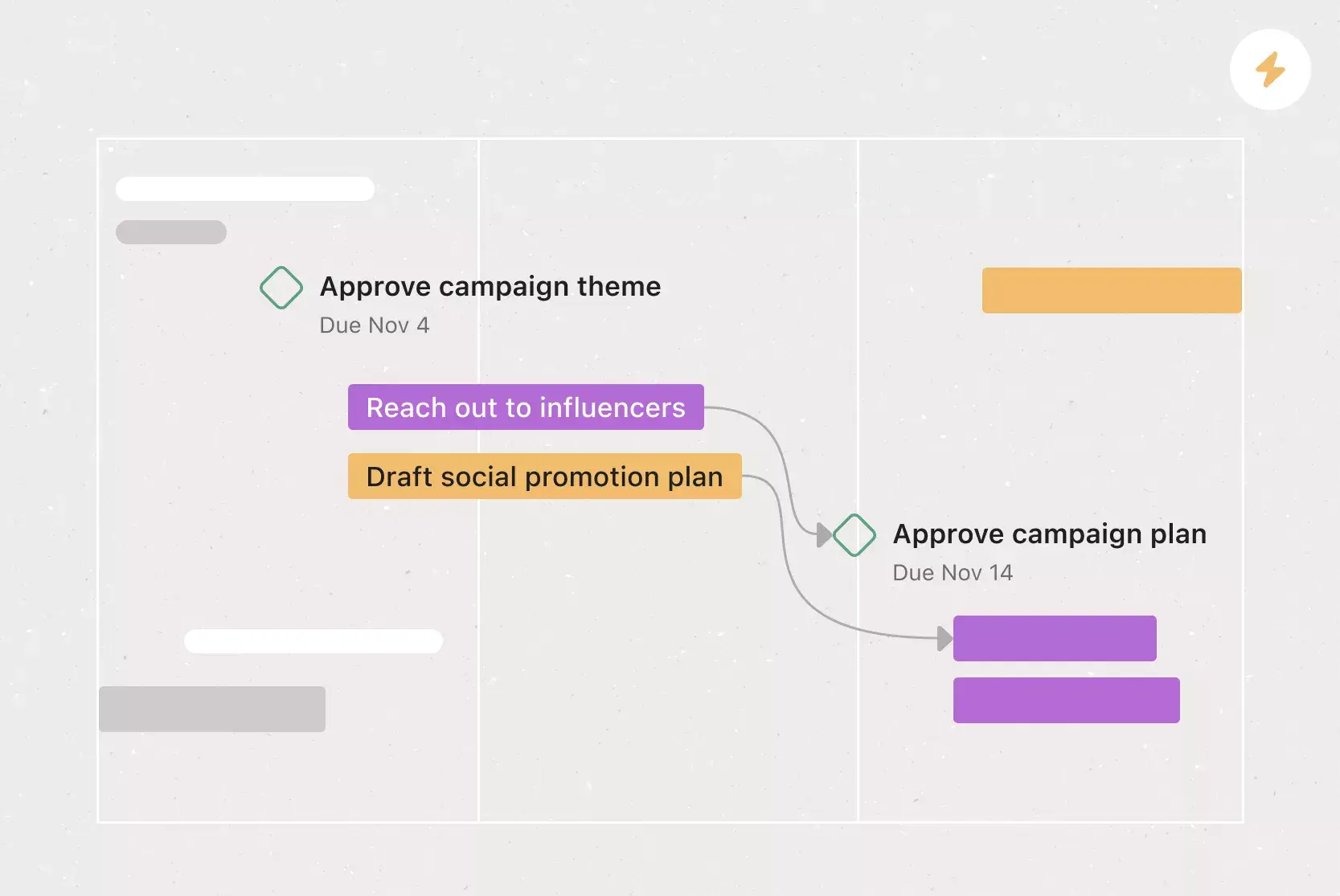
Add dependencies so tasks are completed in the right order.
Celebrate and recognize wins with project milestones.
Connect all the project information, from task lists to reporting, all in one central place.
Share your project schedule across teams for cross-collaboration and support.
Automate workflows within your schedule so you can set it and forget it.
Shift due dates when priorities change.
Provide an at-a-glance view of the project status for all stakeholders.
![[Product UI] Product marketing launch project example (Timeline)](https://assets.asana.biz/transform/899fa5fb-9ec2-48ea-b5cc-8f4ecfac5ccb/inline-timeline-product-marketing-launch-2x?io=transform:fill,width:2560&format=webp)
Key elements of project schedule templates
A useful project schedule template gives your team a repeatable way to plan work before deadlines start slipping. Whether you’re managing a simple project or a multi-phase initiative, include these core elements:
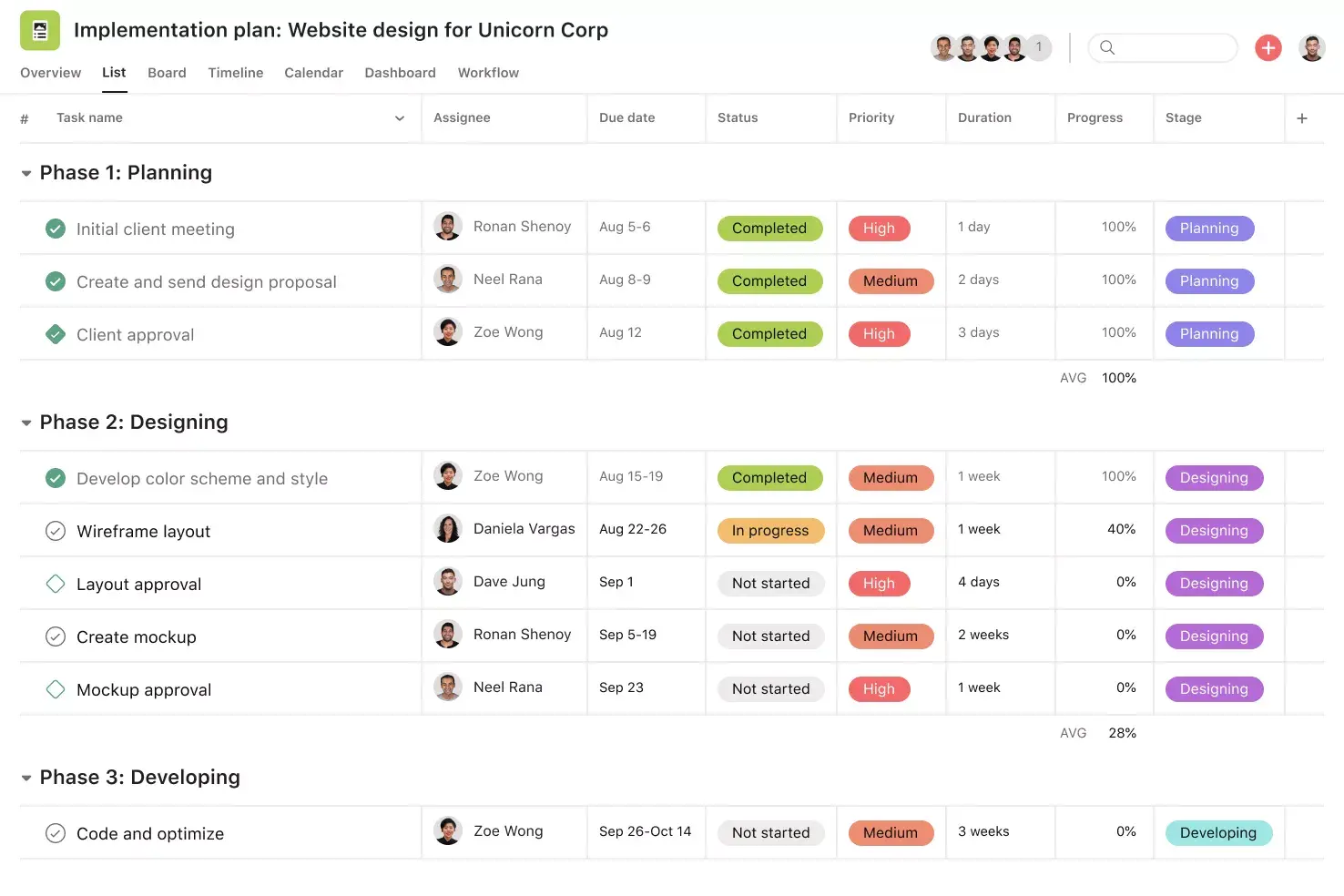
Tasks: Break the project into specific, actionable tasks. Each task should give the assigned team member enough detail to know what they need to complete.
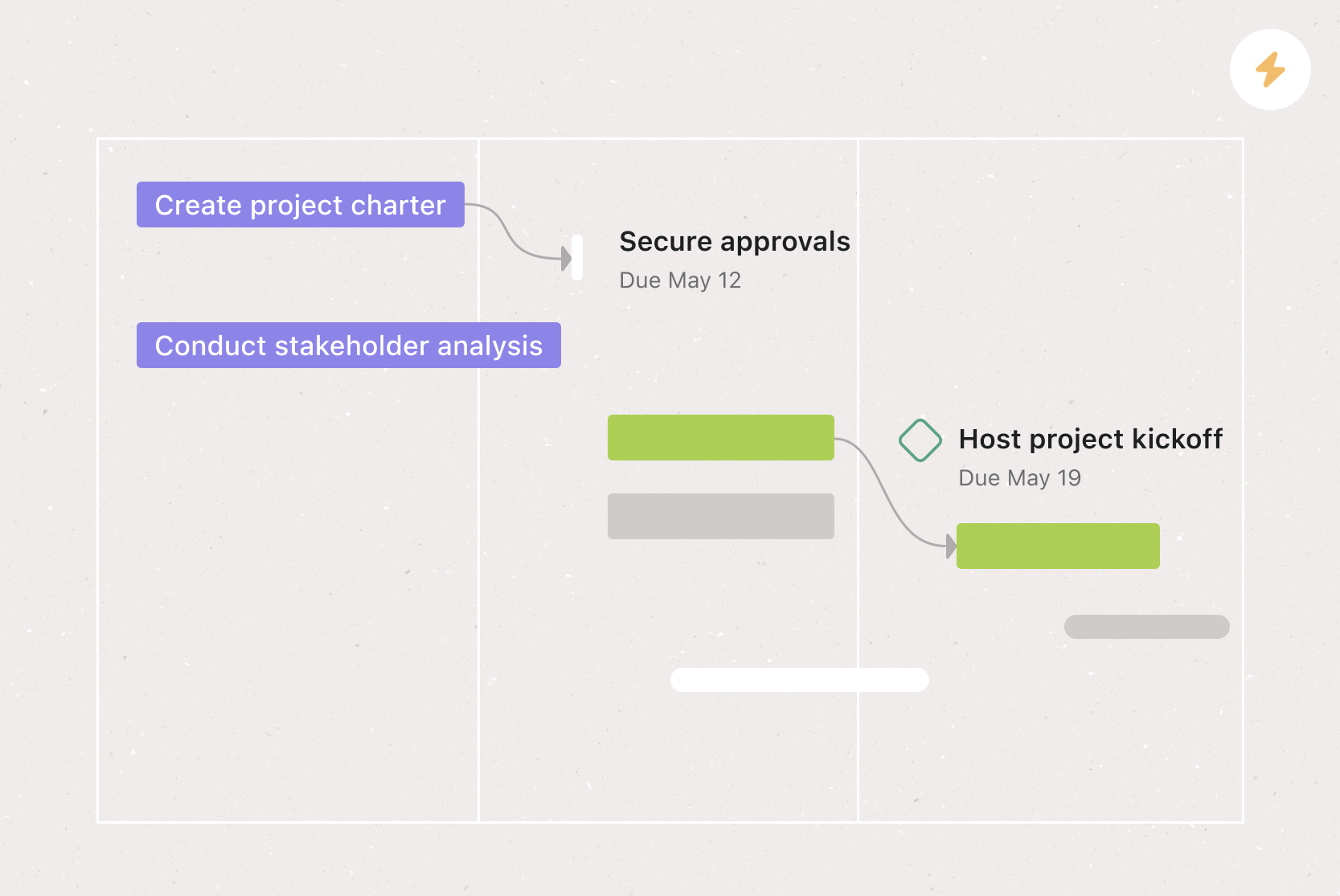
Milestones: Mark major checkpoints in the project timeline. Milestones help teams review progress, confirm key decisions, and prepare for the next phase of work.
Dependencies: Identify work that depends on another task, decision, or approval. Mapping dependencies helps teams schedule work in the right order and avoid preventable delays.
Task owners: Assign one owner to every task. This makes responsibilities easier to track and gives team members a specific person to contact with questions.
Durations and deadlines: Estimate how long each task will take, then add start dates and due dates. This helps teams create a realistic timeline and spot scheduling conflicts before they affect the project.
Deliverables: Define the outputs your team needs to produce at each phase, such as briefs, designs, reports, launch assets, or final approvals. Deliverables keep the schedule tied to concrete work.
Risk buffers: Add extra time for complex work, external reviews, or tasks that depend on another team. A small buffer can help protect the larger timeline when one task takes longer than planned.
Including these elements from the start gives your team more than a task list. It creates a project schedule they can use to assign work, track deadlines, manage dependencies, and adjust plans when details change.
Types of project schedules
Working docs, scrap paper, integrated software: technically, you can create a project schedule anywhere. Before project management software, companies used paper calendars and thick binders to track projects. Now, we have the benefit of digital tools that automatically track and adjust as the project progresses, reducing busywork and boosting productivity.
Here are three common ways to organize project schedules, and the pros and cons of each:
1. Digital documents
It's becoming less common to use documents for digital project schedule templates, but they remain the most accessible.
Pros: Usually free to use, easy to create, and accessible to anyone.
Cons: Documents are static, so they can't keep pace with project changes and require constant manual updates. This increases the risk of human error as tasks get overlooked or deadlines slip. There are also no built-in reminders or tools to alert stakeholders of changes.
2. Spreadsheets
Spreadsheets are easy to turn into project schedules, but that's mostly where the benefits stop.
Pros: A spreadsheet's grid design naturally lends itself to schedules. You can also input rules and formulas to automate some of the work. Plus, they're accessible to most organizations and are mostly free to use.
Cons: Spreadsheets are designed to function around rules and formulas, but you need to know what they are in order for this to be efficient. While anyone can create a spreadsheet, only a select group of people are proficient enough to use them well. Otherwise, they are mostly a grid layout for a document, with limited capabilities for automation, adjustments, and communication with the team.
3. Digital timelines
Also known as Gantt charts, these visual project schedules show tasks plotted along a timeline.
Pros: Gantt chart templates are the ideal way to create a custom project schedule because they're visual, detailed, and easy to update. Key benefits include:
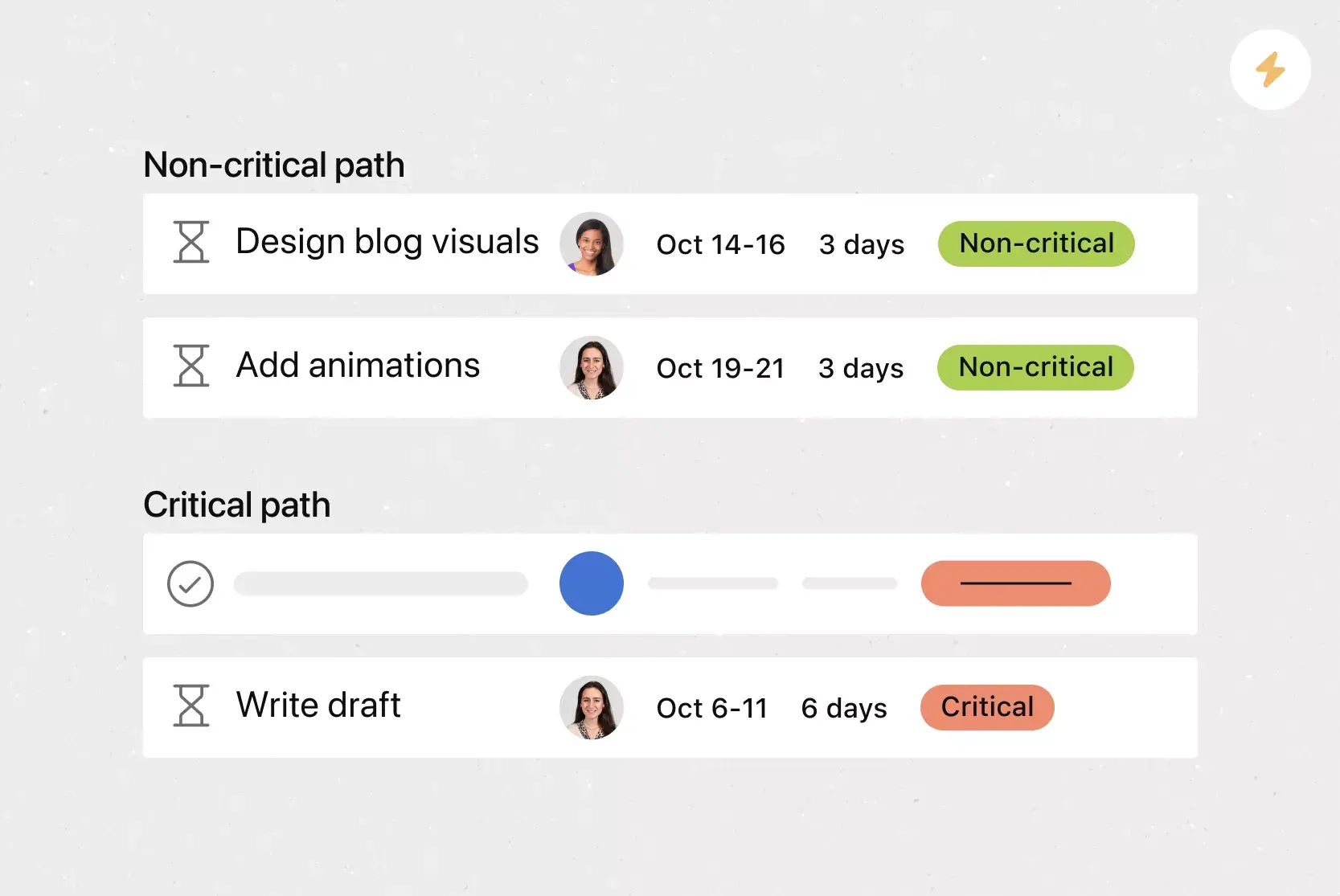
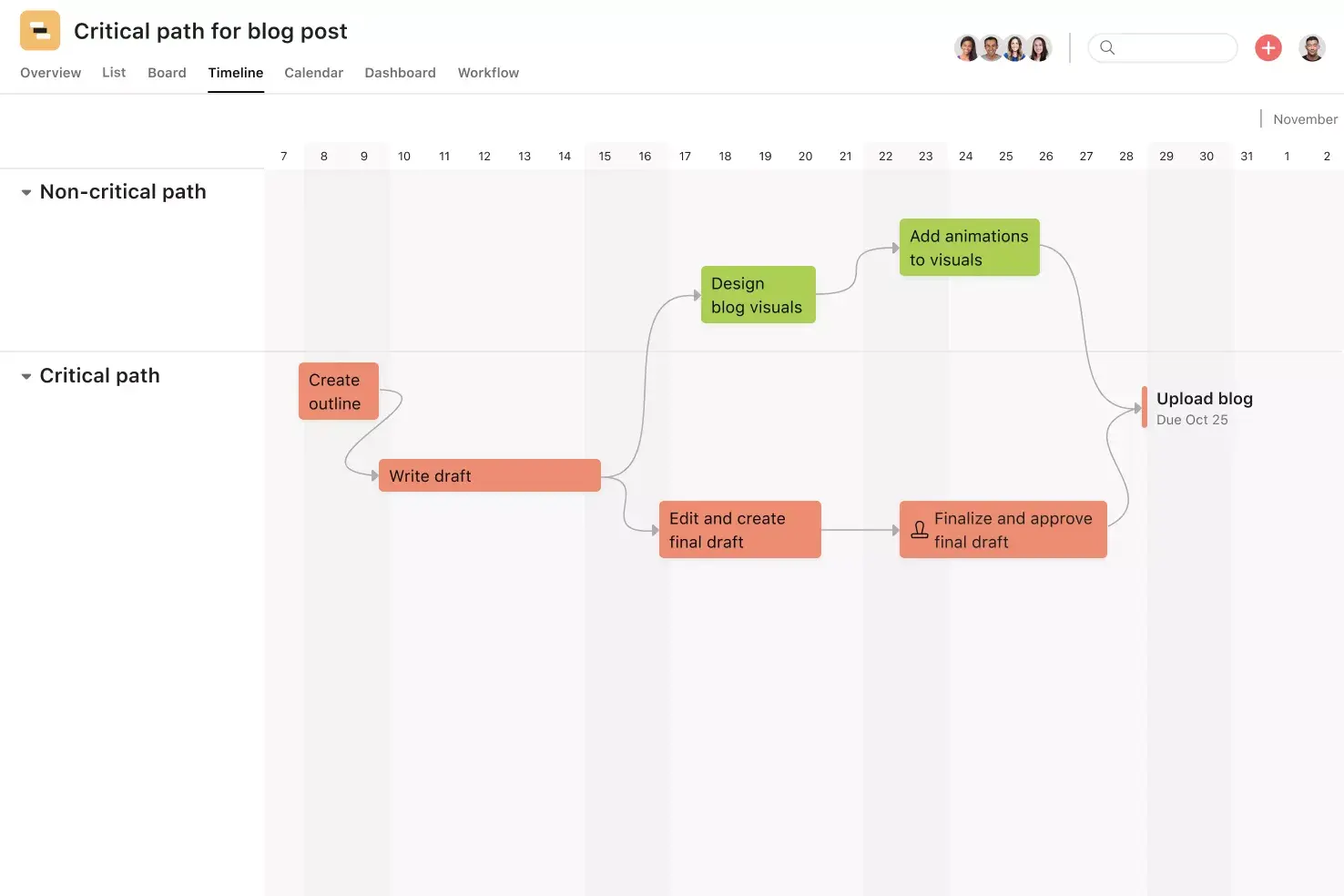
Full visibility: See every task at once and visualize the critical path, the minimum sequence of tasks needed for the project to succeed.
Easy adjustments: Adjust tasks, team members, or deadlines with a few simple clicks.
Workflow automation: Add dependencies and automation rules to automate the full project workflow from start to finish.
Cons: Specific project management software is often required to create easily editable digital timelines.
![[Product UI] Campaign management project example (Timeline)](https://assets.asana.biz/transform/936a6392-5a50-48ed-90b9-d7625b6218bc/inline-timeline-view-campaign-management-2x?io=transform:fill,width:2560&format=webp)
Creating your own custom schedule
All project timelines share the same basic features: deadlines and tasks. From there, you can customize the template to fit how your team works. For example, if you're coordinating cross-collaborative work, you'll likely want to add project dependencies that manage the workflow.
To get started creating your own project timeline, follow these best practices:
Flexible deadlines: Use a system that makes it easy to adjust deadlines. With a project management tool, you can change multiple deadlines at once and alert key stakeholders in real-time.
Dependencies: Use project dependencies to reduce the risk of work being missed. For example, you may need legal approval before a website can go live.
Task ownership: Assign tasks and delegate work so that all stakeholders have ownership of the project.
Milestones: Add project milestones to track and celebrate every accomplishment.
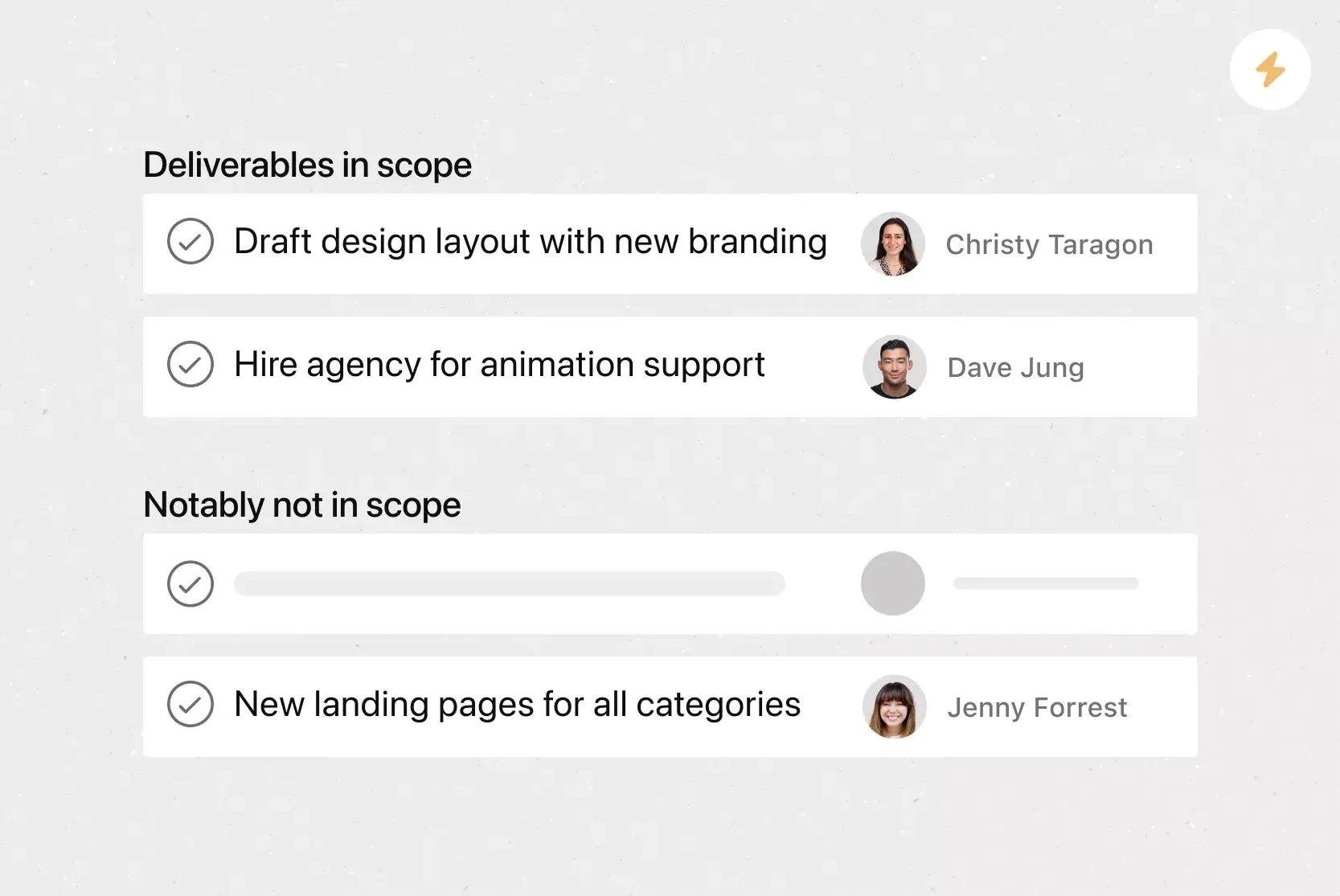
Scope and timing: Define the scope of work, including deliverables, the expected start and end dates for each to-do.
Integrated features
Timeline View. A Gantt-style view that displays all of your tasks in a horizontal bar chart alongside their start dates, end dates, and dependencies. Spot dependency conflicts early and track how every piece of your plan fits together in one place.
Dependencies. Mark a task as waiting on another task so your team knows what's blocking progress and can prioritize accordingly. When a task is completed or rescheduled, Asana automatically notifies the next assignee so they can start or adjust their work.
Automation. Automate manual work so your team spends less time on busywork and more time on strategic tasks. Rules in Asana use triggers and actions ("when X happens, do Y") to automatically assign work, adjust due dates, set custom fields, and notify stakeholders.
Project Overview. Your single source for all important project context, giving your team an overview of the what, why, and how of the work. Add project descriptions, meeting details, communication channels, and briefs all in one place.
Recommended apps
Gmail. With the Asana for Gmail integration, you can create Asana tasks directly from your Gmail inbox. Any tasks you create from Gmail will automatically include the context from your email, so you never miss a beat.
Outlook. Create tasks in Asana right from Outlook as action items come in via email. Assign the new task to yourself or a teammate, set a due date, and add it to a project so it's connected to other relevant work.
Clockwise. With the Clockwise + Asana integration, you can add Asana tasks as time blocks in your Google Calendar. Specify the duration of tasks, when they happen, and whether Clockwise can automatically reschedule them.
Google Workplace. Attach files directly to tasks in Asana using the Google Workplace file chooser built into the Asana task pane. Easily attach any My Drive file with just a few clicks.
Keep your projects on schedule with Asana
A well-built project schedule template gives your team the clarity they need to stay focused, meet deadlines, and deliver great work. By defining tasks, assigning owners, and mapping dependencies from the start, you set every project up for success.
With Asana, you can build and save custom project schedule templates, visualize work on a timeline, automate repetitive steps, and keep everyone aligned in one place. Whether you're managing a product launch, a marketing campaign, or an organization-wide initiative, Asana helps your team move from planning to done with confidence.
Get started and create your first project schedule template today.
FAQs about project schedule templates
How do you create a project schedule template?
What is the function of a project schedule template?
What are some things to include in a project schedule template?
What is the difference between a project schedule template and a work plan template?
Why is a project schedule template important?
Can you make a project schedule template in Excel?
How does a project schedule template fit into project management?
Related templates
![[Templates] Marketing Project Plan (Card) image](https://assets.asana.biz/transform/af70ac54-97b9-4639-b639-be3a3d951e3e/TG23-web-thumbnail-016-stakeholderregister-static-2x?io=transform:fill,width:2560&format=webp)
![[Template] IT project plan (Card image)](https://assets.asana.biz/transform/8aa523a9-4dcb-4053-8e69-7bdf900b48b9/web-product-template-thumbnail-IT-EN-US?io=transform:fill,width:2560&format=webp)
![[Templates] Operations Project Plan (Card)](https://assets.asana.biz/transform/ec3bf1b9-cbcd-413c-a20c-82bf1dbe10d2/TG23-web-thumbnail-008-risk-management?io=transform:fill,width:2560&format=webp)
![[Templates] RFP Process (Card image)](https://assets.asana.biz/transform/14aa111b-ab22-483f-bfd1-3090acb7d2a5/RFP-process-premium-m?io=transform:fill,width:2560&format=webp)

![[HR Project Plan] template Card Image](https://assets.asana.biz/transform/663b8e5e-89c9-4b0b-b48b-1b17e01d1889/TG23-web-thumbnail-033-process-improvement-static-2x?io=transform:fill,width:2560&format=webp)
![[Templates] Waterfall project management (card image)](https://assets.asana.biz/transform/d87fc21c-53f0-4bc9-9094-9789b963be9b/article-project-management-waterfall-project-management-methodology-2x?io=transform:fill,width:2560&format=webp)
![[Templates] Status report (card image)](https://assets.asana.biz/transform/9c82d399-782b-40d3-9eb1-fd7544bef794/article-project-management-project-management-maturity-model-2x?io=transform:fill,width:2560&format=webp)
![[Templates] Event Marketing Plan (Card image)](https://assets.asana.biz/transform/6c7b9329-b612-4732-910a-7917fa079f0b/TG23-web-thumbnail-014-project-chart-static-2x?io=transform:fill,width:2560&format=webp)
![[Templates] Communication plan (card image)](https://assets.asana.biz/transform/3dc9eadf-9d2d-40a2-a05d-63adb32a1de7/article-collaboration-synchronous-vs-asynchronous-communication-2x?io=transform:fill,width:2560&format=webp)
![[Templates] Design Project Plan (Card image)](https://assets.asana.biz/transform/c768a28c-822f-420f-93f9-f2eea4c93780/TG23-web-thumbnail-032-bill-of-materials-static-2x?io=transform:fill,width:2560&format=webp)
Create templates with Asana
Learn how to create a customizable template in Asana. Get started today.